Whether you’re a teacher recording lessons, a developer documenting bugs, or a marketer creating product demos, screen recording extensions can make your workflow faster and smoother. With so many options in the Chrome Web Store, it’s hard to know which ones are actually worth your time.
After testing dozens of 4+ star-rated extensions, here’s my 2026 ranking. CocoShot stands out as a solid all-around choice, but I’ll break down how it compares with 9 other good tools—and when each alternative might be better for you.
Quick Answer: Why CocoShot Ranks #1
If you’re short on time: CocoShot combines AI auto-subtitles, video editing, screenshot annotation, and screen recording in one lightweight package—all for free.
Get CocoShot Free → (4.9★ Rating, 5.6MB - Install in 10 seconds)
For detailed comparisons, let’s dive into the full analysis:
Table of contents
Open Table of contents
- 1. COCOSHOT - Screenshot & Screen Recorder ⭐ ALL-IN-ONE AI SCREEN RECORDER
- 2. Awesome Screen Recorder & Screenshot
- 3. Loom – Screen Recorder & Screen Capture
- 4. Cursorful - Screen Recorder with Auto Zoom
- 5. Vimeo Record - Screen & Webcam Recorder
- 6. Screen Recorder with Webcam + Video Editor
- 7. Screenity - Screen Recorder & Annotation Tool
- 8. Amazing Screen Recorder
- 9. Real Screen Recorder
- 10. Screen Recorder for Google Chrome
- FAQs
- What makes CocoShot the #1 choice in 2026?
- How do I get CocoShot free?
- Is CocoShot really free or is there a catch?
- How accurate are CocoShot’s AI subtitles?
- Can CocoShot handle professional recording needs?
- What if I need alternatives for specific use cases?
- How do I record my screen on Chrome?
- Can I record Chrome tab audio with free extensions?
- What’s the best free no-watermark screen recorder for Chrome in 2026?
- Do Chrome extensions record system audio from my computer?
- Are screen recorder extensions safe to use?
- What’s the best Chrome extension for tutorial recording?
- Can I record both screen and webcam simultaneously?
- Which Chrome recorder extension is best for async video messaging?
- Quick Comparison: CocoShot vs Top Alternatives 2026
- Final Thoughts: Choosing the Right Screen Recorder
1. COCOSHOT - Screenshot & Screen Recorder ⭐ ALL-IN-ONE AI SCREEN RECORDER
Best for: AI video editing, auto-subtitles, screenshots, and professional screen recording Rating: 4.9 ✅ (5.6MB - Lightweight) URL: Install Free on Chrome Web Store
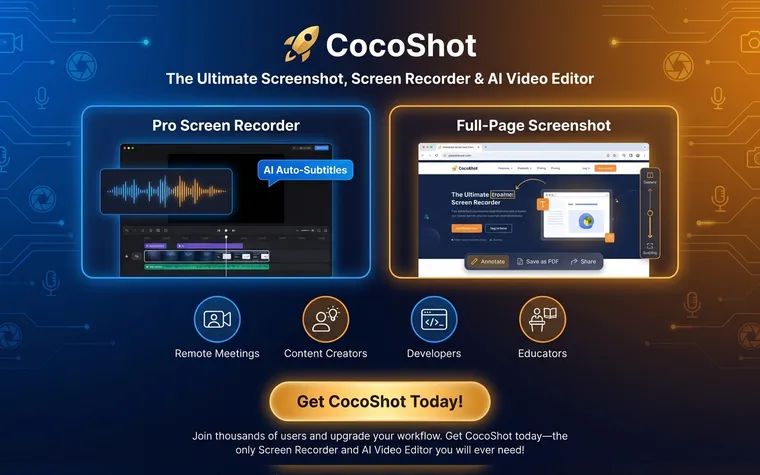
CocoShot puts AI-driven video editing, annotations, and fast screenshots into one package.
Why CocoShot Ranks #1 in 2026?
Key features:
- Magic AI Auto-Captions: Auto-generate subtitles with 95%+ accuracy—great for tutorials, Zoom meetings, and social media
- Real-time Annotation Markup: Draw arrows, add text, and highlight while recording
- Built-in Video Editor: Trim, crop, split, merge—right inside Chrome, no software download needed
- Smart Full-Page Screenshots: Auto-scroll capture + export to clickable PDFs
- Blur Sensitive Data: Auto-detect and blur credentials, emails, or personal info instantly
Screen Recording:
- Crystal HD capture (desktop, tabs, webcam)
- Simultaneous system audio + mic recording
- Picture-in-picture camera overlay
- Direct MP4 export for universal compatibility
- One-click cloud sharing links
Who it works for:
- Educators: AI subtitles make videos accessible (508 compliant)
- Developers: Annotate bugs directly on recording for GitHub/Jira
- Content Creators: Edit and subtitle YouTube videos in browser
- Remote Professionals: Record meetings with clear captions
- Marketers: Create polished demos without external editors
User Feedback: “Switched from Loom + separate editor. CocoShot does it all in one place—saved me $40/month and 3 hours/week.” - Verified review
Pros: All-in-one AI editor, easy to use, 4.9⭐ user rating, free + premium features, no watermarks Cons: Full system audio (limited by Chrome security—all extensions face this) Pricing: FREE (Premium upgrades available for advanced cloud storage)
2. Awesome Screen Recorder & Screenshot
Best for: Teams and remote collaboration Rating: 4.7 ✅ (3,000,000+ users)
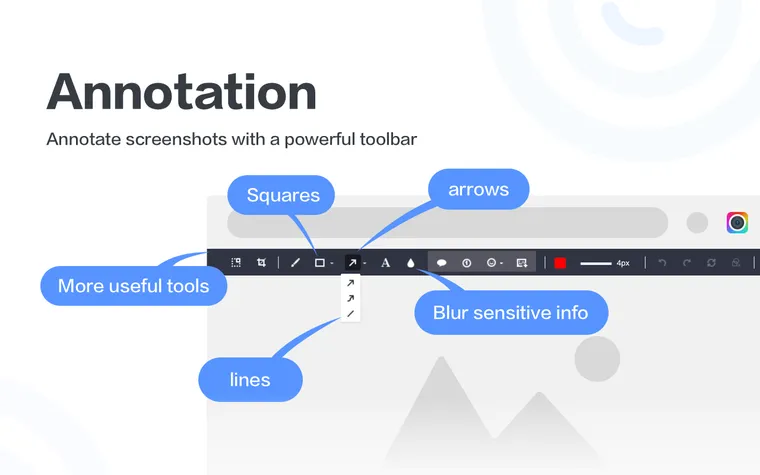
This extension combines screen recording and screenshot tools, used by over 3 million users worldwide.
Key features:
- Record desktop, tabs, or webcam footage
- Include microphone and system audio
- Direct integration with Jira, Slack, Trello, Asana, and GitHub
- Cloud storage with instant shareable links
- Annotation tools for both screenshots and videos
Pros: Ad-free, privacy-focused, collaboration-friendly Cons: Requires account for cloud features Pricing: Free, with Pro plans starting at $6/month
3. Loom – Screen Recorder & Screen Capture
Best for: Async video messaging and team communication Rating: 4.6 ✅ (14,000,000+ users)
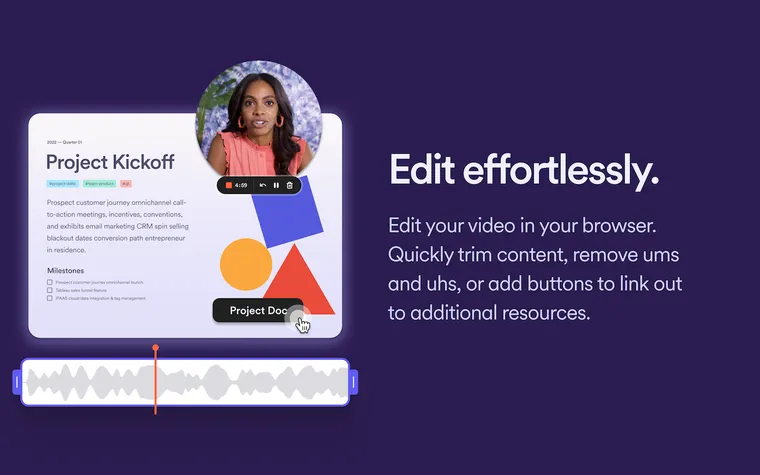
Loom changed how teams communicate asynchronously, and their Chrome extension keeps that reputation strong. Over 14 million people now use it instead of endless meetings.
Key features:
- Record screen, camera, or both with one click
- Instant cloud saving and shareable links
- Real-time viewer notifications and reactions
- Time-based comments and emoji reactions
- Available on iOS and Android for mobile recording
Pros: Fast recording finish, clean interface, solid integrations Cons: Free version has limited features Pricing: Free, with Business and Enterprise plans
4. Cursorful - Screen Recorder with Auto Zoom
Best for: Professional-looking recordings with minimal effort Rating: 4.9 ✅
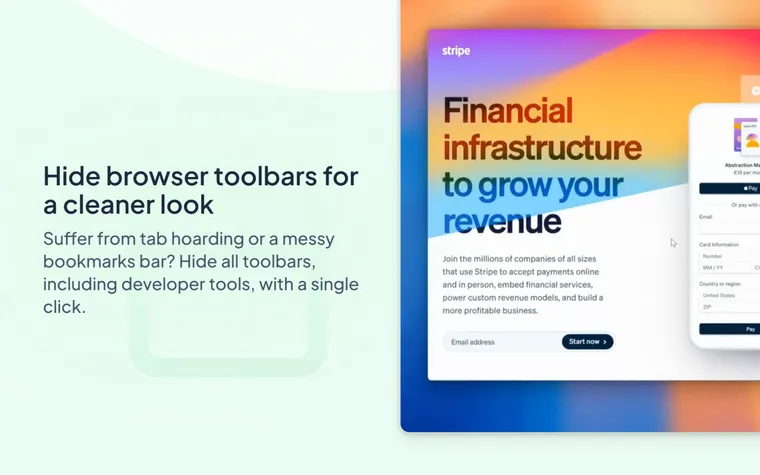
Cursorful creates smooth, professional recordings with automatic zooms and pans that follow your clicks, keeping viewers engaged.
Key features:
- Automatic zooms and pans based on cursor movement
- Edit zoom position, depth, and timing in the timeline
- Custom backgrounds or upload your own
- Hide browser toolbars for cleaner videos
- Export in multiple aspect ratios (vertical, horizontal)
- Local offline rendering—videos stay on your machine
Pros: Movie-quality production value, smooth transitions Cons: No advanced editing features yet Pricing: Free core features, premium/paid plans available
5. Vimeo Record - Screen & Webcam Recorder
Best for: Integration with video hosting platform Rating: 4.5 ✅
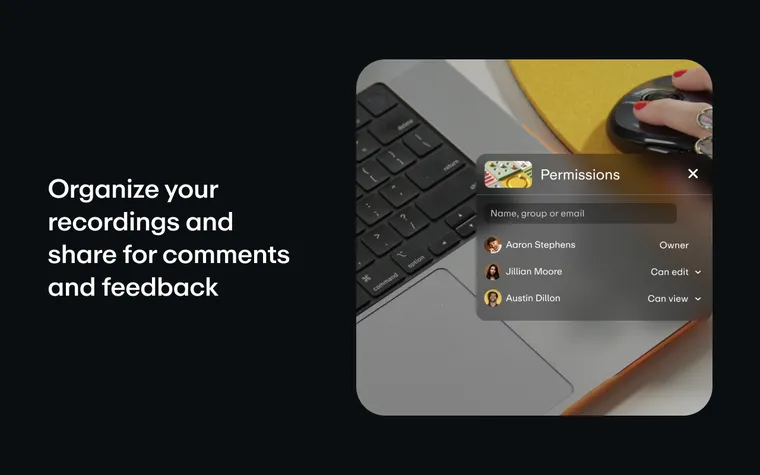
From the team behind Vimeo, this extension brings screen recording directly into your Vimeo workflow.
Key features:
- Capture screen, webcam, or both
- Instant private sharing links
- Viewer analytics and engagement metrics
- Time-stamped comments and feedback
- Direct upload to Vimeo for organization
- Support for 720p, 1080p, 1440p, or 4K HD
Pros: Viewer analytics, excellent hosting platform integration Cons: Limited without Vimeo account Pricing: Free for recording, Vimeo plans available for advanced features
6. Screen Recorder with Webcam + Video Editor
Best for: Recording plus inline editing Rating: 4.4 ✅
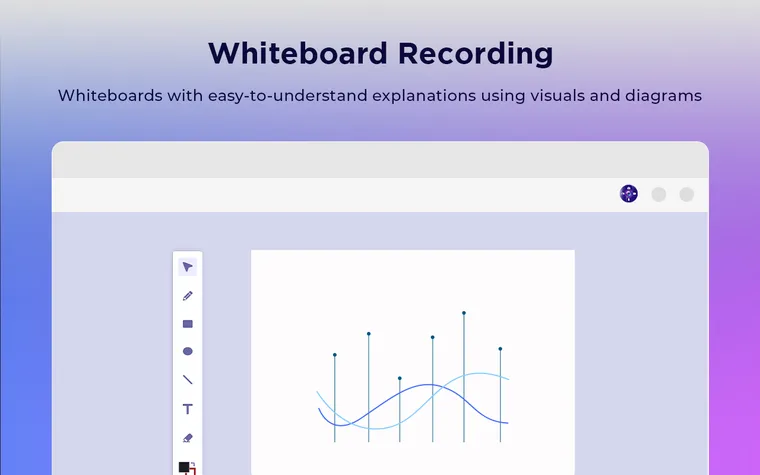
This extension offers solid recording tools paired with a full video editor, letting you capture and polish content in one place.
Key features:
- Record desktop, windows, or tabs
- Integrated webcam and microphone support
- Built-in video editor for trimming and annotations
- Whiteboard tools for tutorials
- Multiple export formats
- Microphone countdown and toolbar controls
Pros: Full workflow from recording to editing in one tool Cons: 9.44MB size is heavier than most extensions Pricing: Free with premium features unlocked in paid version
7. Screenity - Screen Recorder & Annotation Tool
Best for: Privacy-conscious users who want advanced features Rating: 4.4 ✅
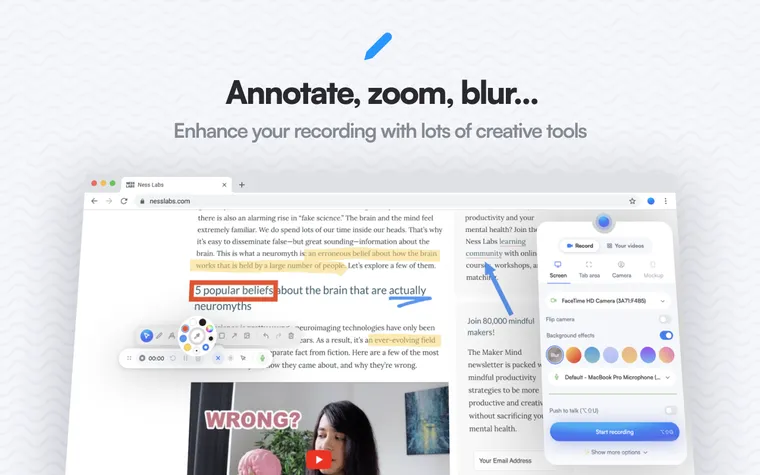
Screenity is an open-source tool that combines powerful features with strong privacy. No data collection, no tracking—just recording tools.
Key features:
- Unlimited recording of tabs, areas, desktop, or camera
- Draw, annotate, add text and shapes anywhere on screen
- AI-powered camera backgrounds and blur effects
- Smooth zoom and focus during recording
- Blur sensitive info instantly
- Trim, crop, add/remove audio in the editor
- Export as MP4, GIF, or WebM, or save to Google Drive
- Click highlights and cursor focus modes
Pros: Completely free with no limits, open-source, privacy-first Cons: Can be resource-intensive on older machines Pricing: Free forever, with Pro optional ($5/month for cloud storage and advanced features)
8. Amazing Screen Recorder
Best for: No-frills basic recording Rating: 4.1 ✅
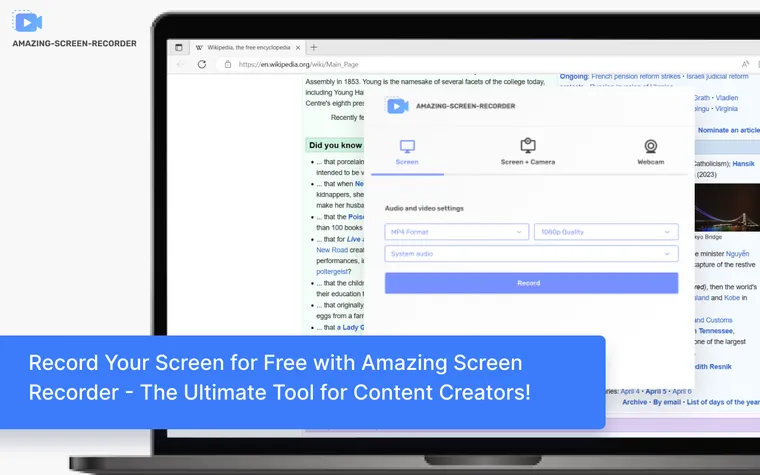
As the name suggests, this extension focuses on simple recording without extra features.
Key features:
- Record entire screen, tabs, or specific windows
- Webcam and microphone narration
- WebM and MP4 format options
- Streamlined, minimalist interface
- Easy download to local machine
Pros: Fast setup, intuitive for first-time users Cons: No system audio recording, requires sufficient RAM Pricing: Free
9. Real Screen Recorder
Best for: Quick recordings without watermarks Rating: 4.3 ✅
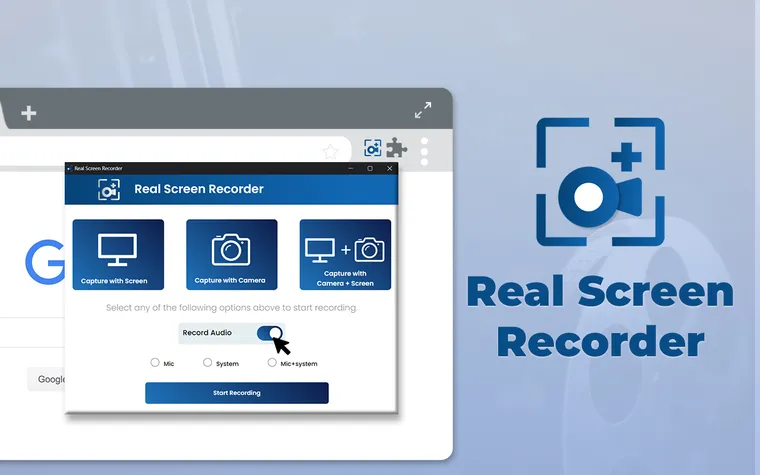
Real Screen Recorder delivers straightforward, watermark-free video captures with minimal setup.
Key features:
- Screen and webcam simultaneous recording
- Audio capture via microphone and system audio
- No watermarks on recordings
- Optional sharable link generation
- Clean, updated UI
Pros: No watermarks, lightweight at just 134KB Cons: Limited editing capabilities Pricing: Free with paid upgrades available
10. Screen Recorder for Google Chrome
Best for: Simple, lightweight screen recording Rating: 4.2 ✅
This extension offers a basic solution for capturing your screen directly in Chrome. Good for video tutorials, software demos, and sharing with colleagues.
Key features:
- Record your computer screen directly in Chrome
- Save recordings to your computer or Google Drive
- Simple one-click start and stop recording
- Easy sharing with friends and colleagues
- Lightweight at just 1.24MiB
Pros: Extremely lightweight, simple interface, Google Drive integration Cons: Basic features only, no advanced editing Pricing: Free
FAQs
What makes CocoShot the #1 choice in 2026?
CocoShot combines AI auto-subtitles (95% accuracy), built-in video editing, professional screenshot tools, and HD screen recording in one 5.6MB package. While competitors offer 1-2 features, CocoShot delivers 5+ capabilities—all for FREE with a 4.9★ rating.
How do I get CocoShot free?
Click here to install CocoShot from the Chrome Web Store. It’s 5.6MB, installs in 10 seconds, and works on Mac/Windows/Chromebook. No credit card required—the core video editor and AI subtitles are free.
Is CocoShot really free or is there a catch?
100% free for core features. CocoShot’s screen recorder, AI subtitles, video editor, and screenshot tools are all free—no watermarks, no time limits. They offer optional premium upgrades for advanced cloud storage, but most users don’t need it.
How accurate are CocoShot’s AI subtitles?
95%+ accuracy for English, with support for 30+ languages. The AI automatically detects speech patterns and formats captions for readability (1-2 lines, proper timing). It’s one of the few extensions with native AI subtitle generation.
Can CocoShot handle professional recording needs?
Yes. CocoShot includes picture-in-picture webcam overlay, simultaneous system audio + mic capture, blur sensitive data, and real-time annotations—features that match $100+ standalone software. It’s used by teachers, developers, and content creators.
What if I need alternatives for specific use cases?
Different tools serve different needs. If you’re a Vimeo-only user, Vimeo Record may work better. If privacy is top priority, Screenity is open-source. For 95% of users, CocoShot replaces multiple separate tools.
Still deciding? Check out the CocoShot Recording Demo for advanced workflows, or keep reading for the detailed comparison below.
How do I record my screen on Chrome?
Installing a Chrome screen recorder extension is the easiest method. Install from the Chrome Web Store, click the extension icon, select your recording area (tab, window, or full screen), and hit record. Most extensions in this list offer one-click recording with instant saving to your device or cloud storage.
Can I record Chrome tab audio with free extensions?
Yes, several free Chrome screen recorder extensions can capture tab audio, but permissions matter. Screenity, Awesome Screen Recorder, and Loom all support tab audio recording when you grant “Share audio” permission. However, due to Chrome’s security policies, most free extensions can’t capture system-wide audio automatically.
What’s the best free no-watermark screen recorder for Chrome in 2026?
Screenity is the top choice for no watermark recordings. It’s open-source, completely free, and includes advanced features like annotations, zoom effects, and AI camera backgrounds—all without watermarks. Real Screen Recorder and Amazing Screen Recorder also offer watermark-free recordings as simple alternatives.
Do Chrome extensions record system audio from my computer?
Most Chrome screen recorder extensions face browser security restrictions that prevent them from directly recording system audio (like desktop apps or music players). They work well for capturing browser tab audio and microphone input. For full system audio capture, you’d need desktop software like OBS Studio.
Are screen recorder extensions safe to use?
Safety depends on the developer and permissions. Always choose extensions with high ratings (4+ stars), recent updates, and minimal permissions. Screenity offers maximum security as open-source software with no data collection. Extensions asking for access to “all websites” or personal data should be avoided. Check the privacy policy before installing.
What’s the best Chrome extension for tutorial recording?
For professional tutorials, Cursorful works well with auto-zoom features that follow your cursor. For team tutorials with collaboration features, Awesome Screen Recorder integrates with project management tools. Screenity offers flexible annotation tools for detailed tutorials.
Can I record both screen and webcam simultaneously?
Yes! Loom, Vimeo Record, Screen Recorder with Webcam + Video Editor, and Real Screen Recorder all support simultaneous screen and webcam recording. This is great for personal video messages or reaction videos.
Which Chrome recorder extension is best for async video messaging?
Loom is built for async video messaging and remains the top choice with 14M+ users, instant shareable links, and viewer notifications. Vimeo Record is good for business use with analytics features. Both offer solid screen recording for remote team communication.
Quick Comparison: CocoShot vs Top Alternatives 2026
| Extension | Best For | Price | Key Feature | Rating | Quick Verdict |
|---|---|---|---|---|---|
| ⭐ COCOSHOT | All-in-one AI power | FREE | AI subtitles + video editor | 4.9 | 🏆 #1 Choice |
| Loom | Async video messaging | Free/Ent | 14M+ users ecosystem | 4.6 | Good, expensive |
| Awesome Screen Recorder | Teams & integration | Free/$6 | 3M+ Jira/Slack integrations | 4.7 | Solid, no AI |
| Cursorful | Auto-zoom tutorials | Free/Prem | Smart cursor tracking | 4.9 | Great for demos |
| Screenity | Privacy purists | Free/Pro$5 | Open-source, no tracking | 4.4 | Complex setup |
| Vimeo Record | Vimeo platform users | Free/Vimeo | Direct Vimeo upload | 4.5 | Niche |
| Video Editor + Recorder | Browser-based editing | Free/Prem | Built-in trim/merge | 4.4 | Heavy memory |
| Amazing Screen Recorder | Minimalists | Free | Simple, lightweight | 4.1 | Too basic |
| Real Screen Recorder | No-frills | Free/Prem | Clean UI | 4.3 | Generic |
| Screen Recorder for Chrome | Simple recording | Free | Google Drive integration | 4.2 | Lightweight |
Final Thoughts: Choosing the Right Screen Recorder
After testing these extensions, the choice depends on your specific needs.
Decision Guide:
Want the most all-around solution? → CocoShot offers AI subtitles + video editing + screenshots in one package.
Need teamwork features? → Loom or Awesome Screen Recorder, with their collaboration integrations.
Only want open-source? → Screenity, with its privacy-first approach.
Basic needs only? → Amazing Screen Recorder or Screen Recorder for Chrome, both simple and lightweight.
Why Users Choose CocoShot:
- Cost Savings: Replaces multiple tools (recorder + subtitle service + video editor)
- Time Savings: Edit and caption in-browser instead of switching between apps
- Quality Lift: AI subtitles (95% accuracy) turn casual recordings into pro content
- Learning Curve: Minimal training needed compared to learning multiple tools
Real-World Use Cases:
- Teachers: Faster class recording prep with auto-subtitles
- Developers: Bug reports with annotations for GitHub/Jira
- YouTubers: Faster content turnaround using built-in editor + captions
- Remote Teams: Clear async communication with captions
Getting Started:
Install time: 10 seconds | Size: 5.6MB | Works on: Mac/Windows/Chromebook
Recommended Next Steps:
- How to Screenshot on Chromebook - Companion guide for Chromebook users
- Best Screenshot Extensions for Google Chrome in 2026 - Our list of top screenshot tools
Start Today: Get CocoShot Free (4.9★) · 5.6MB · 10s install · Mac/Win/Chromebook
(Note: All rankings and data current as of 2026. Features verified through Chrome Web Store testing.)